Handling Alarms
Menu: Devices › Alarm Center
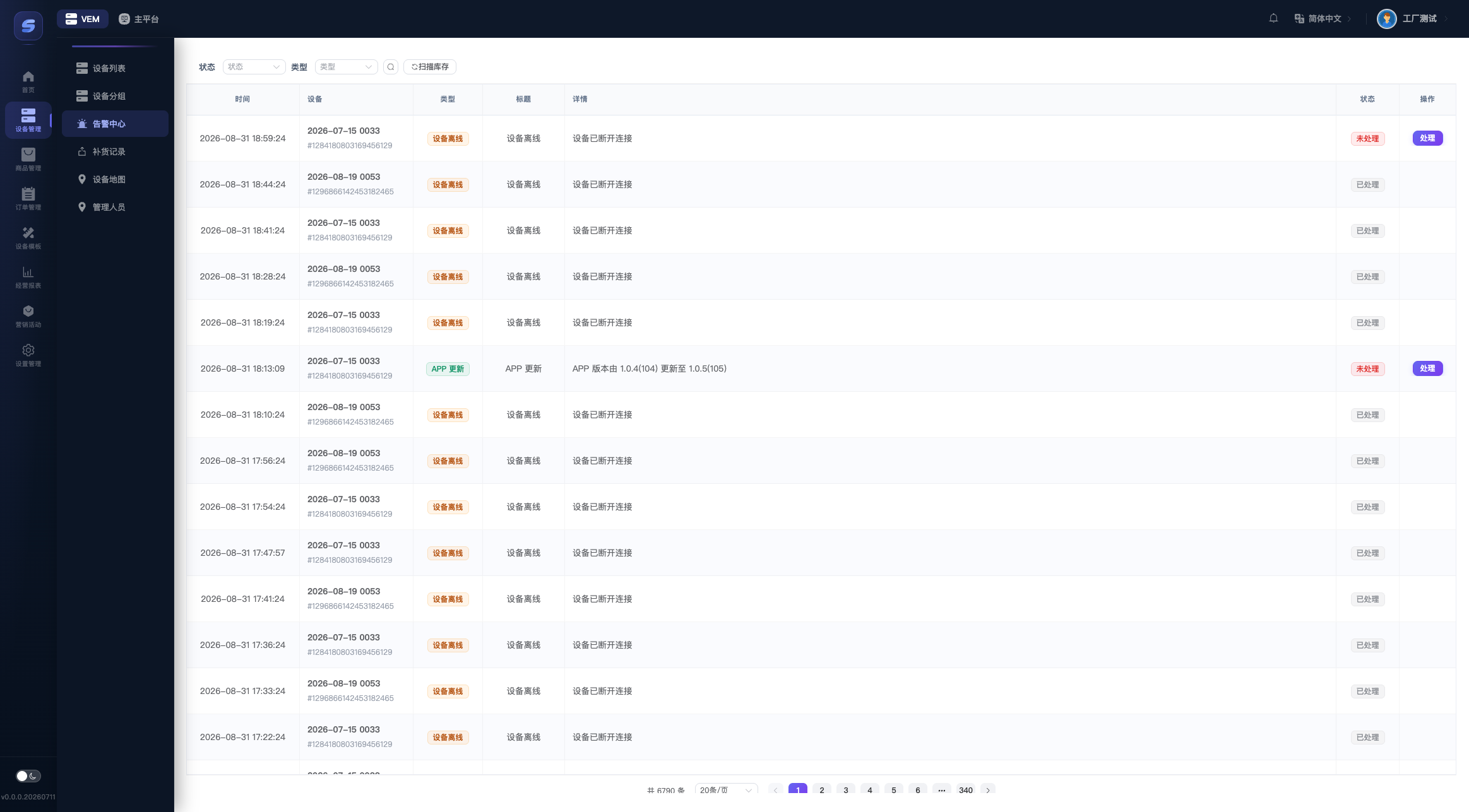
Alarm Types
| Type | Triggered when | Suggested action |
|---|---|---|
| Offline | The device heartbeat stops | Check the device power and network |
| Fault | The device reports a hardware fault (the Detail column shows a readable description, e.g. "Pickup timeout after dispense", "Out of boxes") | On-site inspection and repair |
| Dispense failed | An order failed to dispense (the detail includes the order number and reason) | Verify in Orders and refund if appropriate |
| Low stock | Product stock falls below the device's stock threshold | Arrange restocking |
| App updated | The device app version changed | For your information only |
Actions
- Filter: filter by status (Active/Resolved) and type; newest first by default.
- Resolve: once the issue is confirmed fixed, click Resolve on the row to mark the alarm as resolved (this only changes the status; it does nothing to the device).
- Scan stock: button above the table; immediately runs a full stock scan and creates/updates low-stock alarms for products currently below their thresholds.
Alarm Email Notifications
To receive an email whenever an alarm is raised, configure it on the Settings page — see System Settings.