Promotions
Menu: Marketing › Promotions
Promotions are discounts that apply automatically: when a customer's order on the machine meets the conditions, the discount kicks in — the customer doesn't need to enter anything.
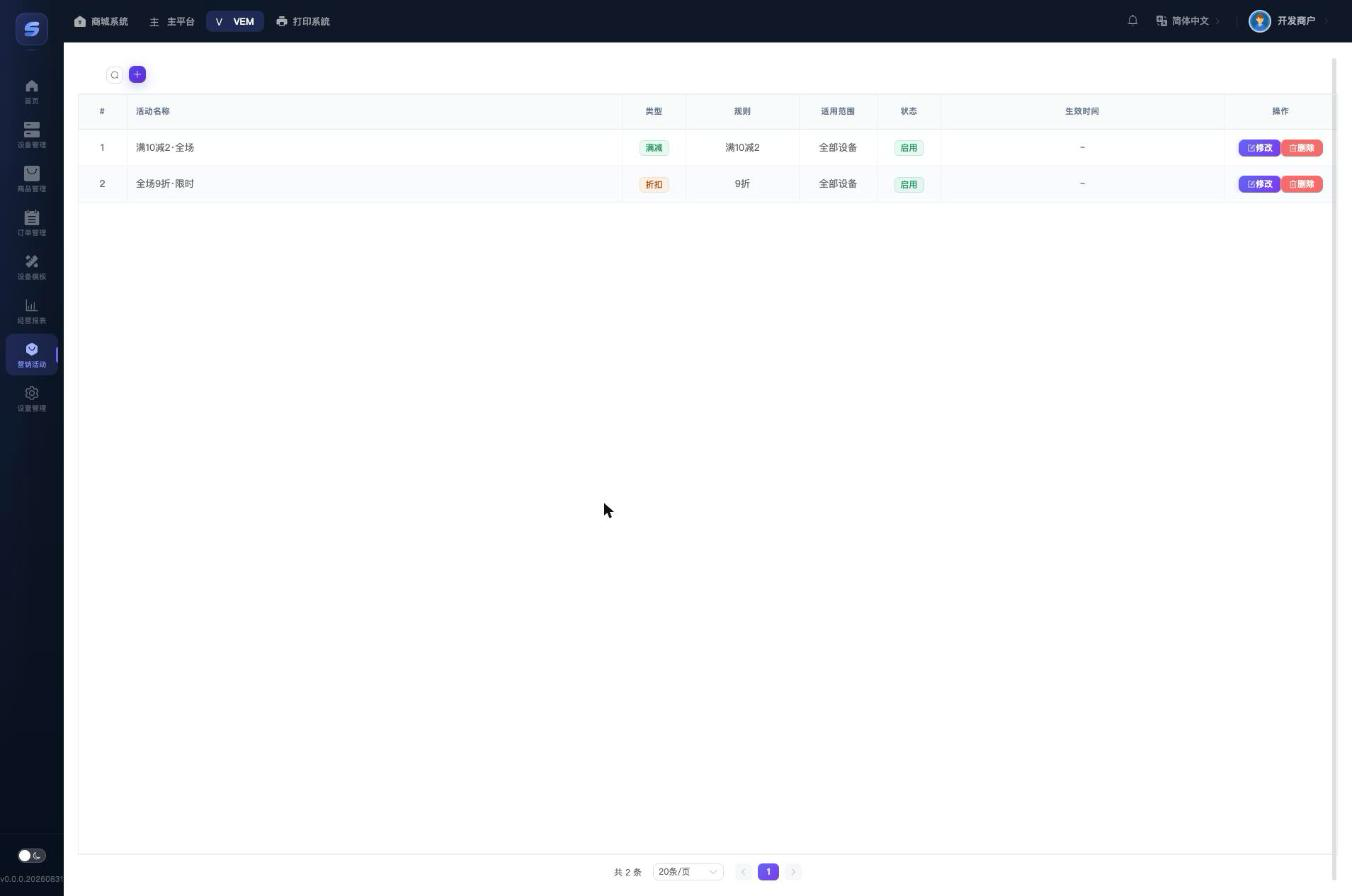
Creating a Promotion
Click + in the top-right corner and fill in:
| Field | Description |
|---|---|
| Name | Any name you like |
| Type | Full Reduce (spend X save Y) or Discount (percentage off) |
| Threshold ($) | The order's original total must reach this amount for the promotion to apply; 0 = no threshold (Full Reduce + threshold 0 = a flat amount off every order) |
| Reduce amount / Discount | Full Reduce: the amount taken off; Discount: enter the percentage the customer pays, e.g. 90 = customer pays 90% (10% off) |
| Scope | All devices, or selected devices (pick in a dialog) |
| Active period | Start and end time; leave empty = always active |
| Sort | Higher numbers appear earlier in the list |
| Enabled | Toggle; turning it off takes effect immediately |
The Discount field is the easiest one to get wrong
"Discount" is the percentage the customer pays, not the amount taken off: for 10% off enter 90, for 50% off enter 50. Entering 10 means the customer pays only 10% — a 90% discount!
Rules to Know
- Promotions are calculated on the order total; they can only be scoped by device, not by product.
- If an order matches multiple promotions, only the one with the biggest discount applies — they do not stack.
- Promotions can stack with promo codes: the promotion is applied first, then the promo code is calculated on the discounted price.
- To pause a promotion temporarily, open the edit dialog and switch off "Enabled" — it takes effect immediately.