Getting Started
This guide is for merchant operators using the VEM vending machine admin console. Channel staff should see the Channel Guide instead.
Sign In
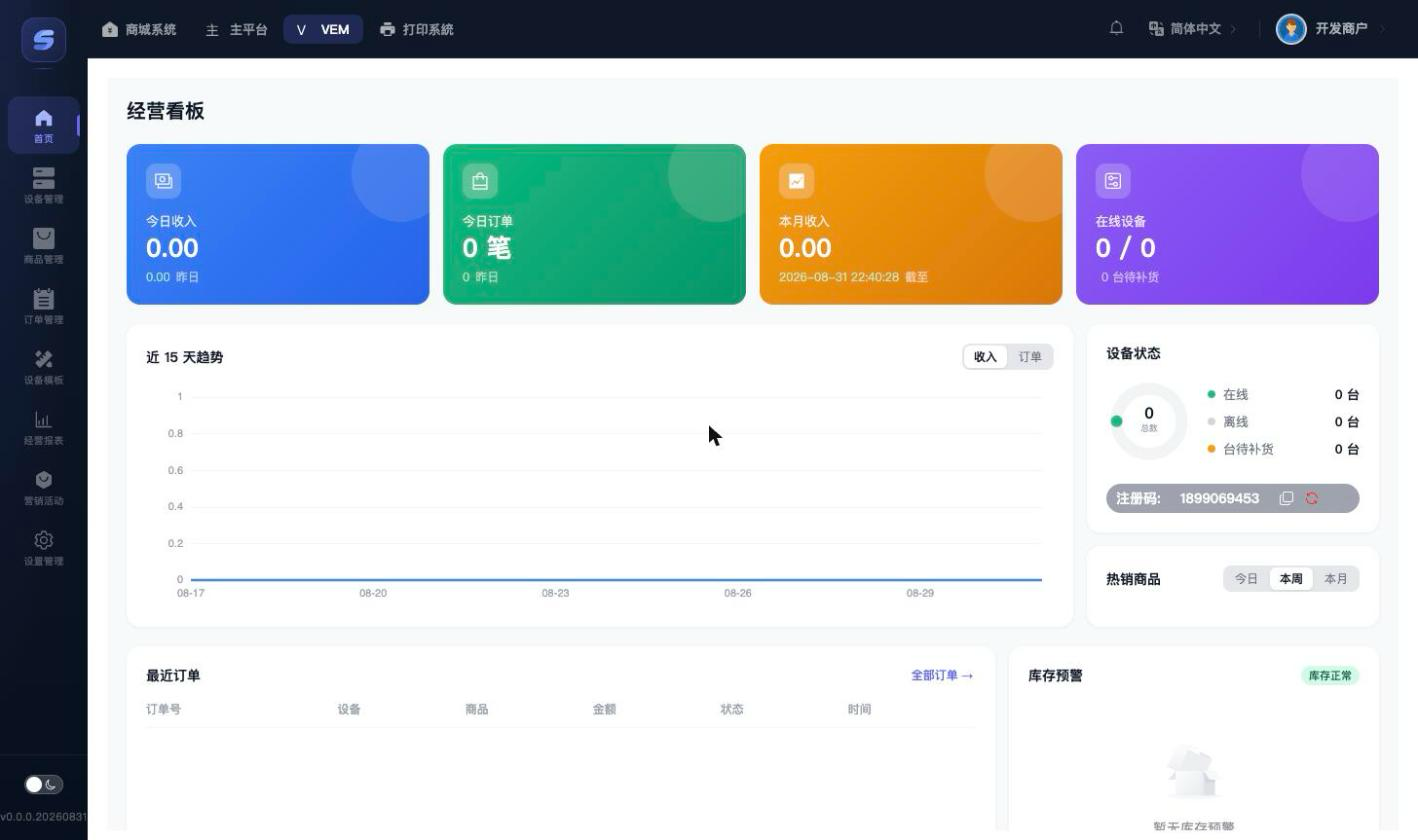
Open the admin console URL and sign in with your account and password. After signing in, the left-hand menu contains all vending machine features:
| Menu | What it's for |
|---|---|
| Home | Dashboard: revenue, orders, device status, and low-stock alerts at a glance |
| Devices | Device list/groups/map, alarm center, restocking records, staff authorization |
| Products | Manage products and categories |
| Orders | Look up orders, trace the dispensing flow, issue refunds |
| Templates | Design the machine's on-screen layout |
| Reports | Sales summary and product sales rankings |
| Marketing | Promotions and promo codes |
| Settings | Service hotline, alert email notifications |
Three Steps to Go Live: Get Your First Machine Selling
- Onboard the device — Copy the merchant registration code from the Home page, enter it on the device to complete binding, then open the device detail page to fill in the name, group, and low-stock alert threshold.
- Create products — Create product categories first, then publish products (title, price, cover image, attributes).
- Assign products to slots — Open the device's slot page, assign products to slots, and set the stock. Once done, the machine is ready to sell.
To make the screen look better, you can also do screen design (fastest way: import the default template and bind it to the device).
Daily Checklist
- Every morning, glance at the Home dashboard: yesterday's revenue, low-stock alerts, and whether all devices are online;
- Handle any alerts promptly, and restock when stock runs low;
- If a customer reports a failed dispense, check the dispensing flow in Orders and issue a refund if needed.