② Product Management
Products are the "catalog records" that exist before being assigned to slots. We recommend creating product categories first, then publishing products, and finally assigning them to slots on the device's slot page.
Categories
Menu: Products › Categories
Categories are used to organize products. Every product must be assigned to a category when published, and categories are used for filtering on both the customer side and the admin console.
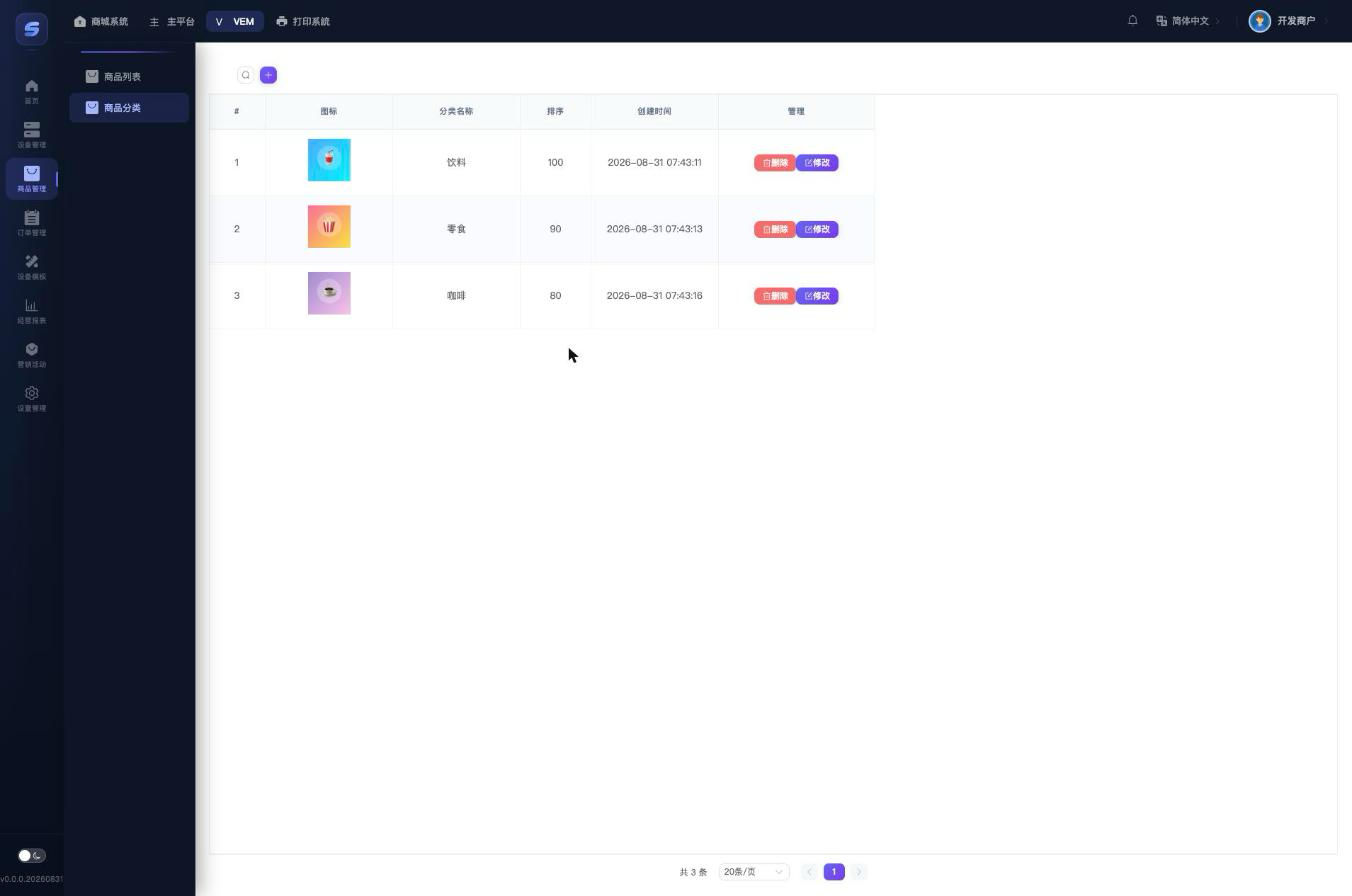
Add a category: Click the + button in the top-right corner and fill in:
| Field | Description |
|---|---|
| Category Name | The category name, e.g. "Drinks", "Snacks" |
| Sort | Higher value = higher position |
| Icon | Click "Upload" to choose an image |
For existing categories, click Edit/Delete in the list row.
Product List
Menu: Products › Product List
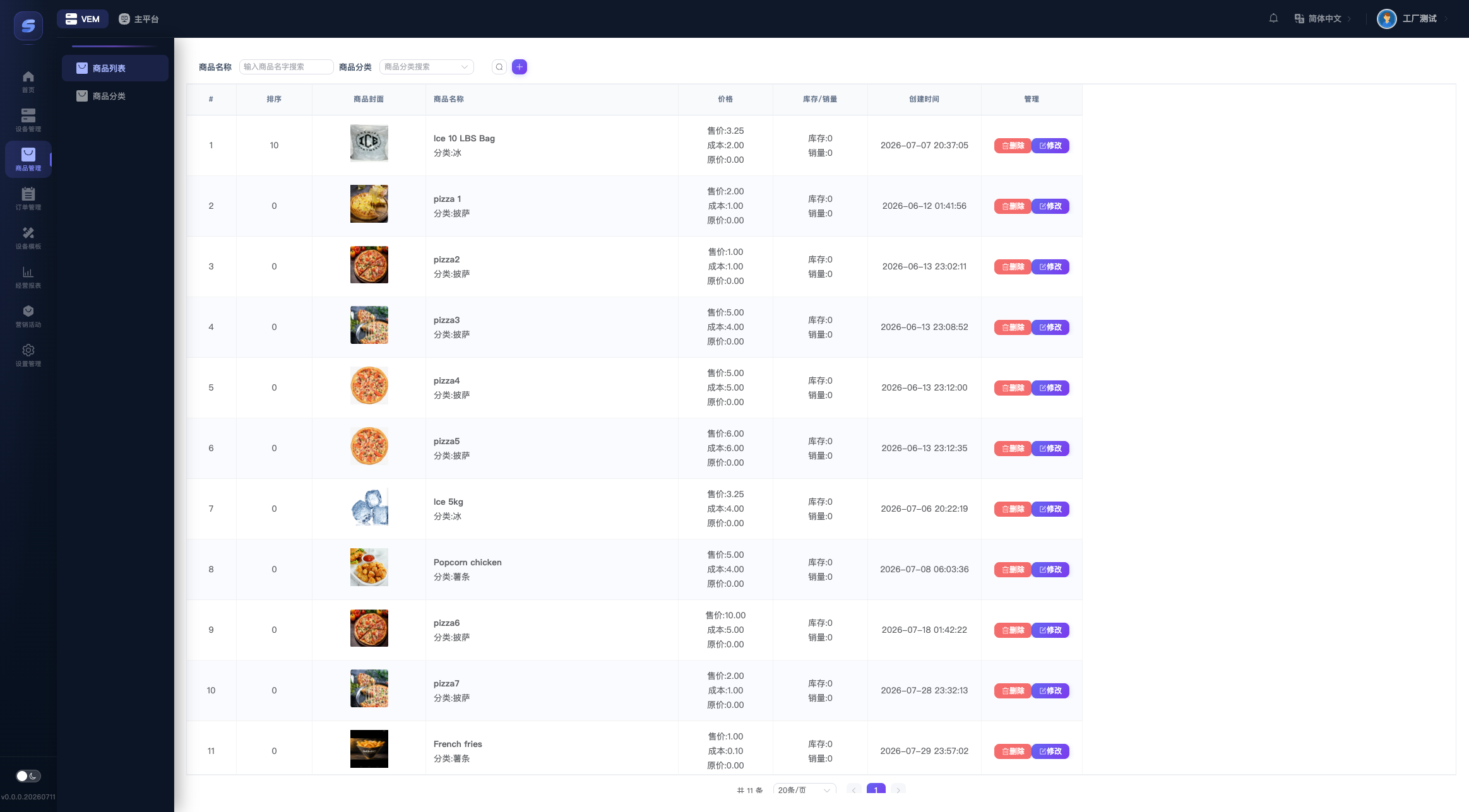
- Search: Filter by product name or category.
- List: Shows the cover image, name and category, prices (sale/cost/original), stock and sales, and creation time.
- Row actions: Edit (open the edit page) and Delete (with a confirmation).
Two kinds of stock
The "Stock/Sales" in the product list is the warehouse-level number; the actual stock in each slot of a machine is managed separately on the device › restock page. When you add stock to a slot, the system automatically deducts it from the product stock.
Publishing a Product
Click + in the top-right corner of the product list to open the New Product page.
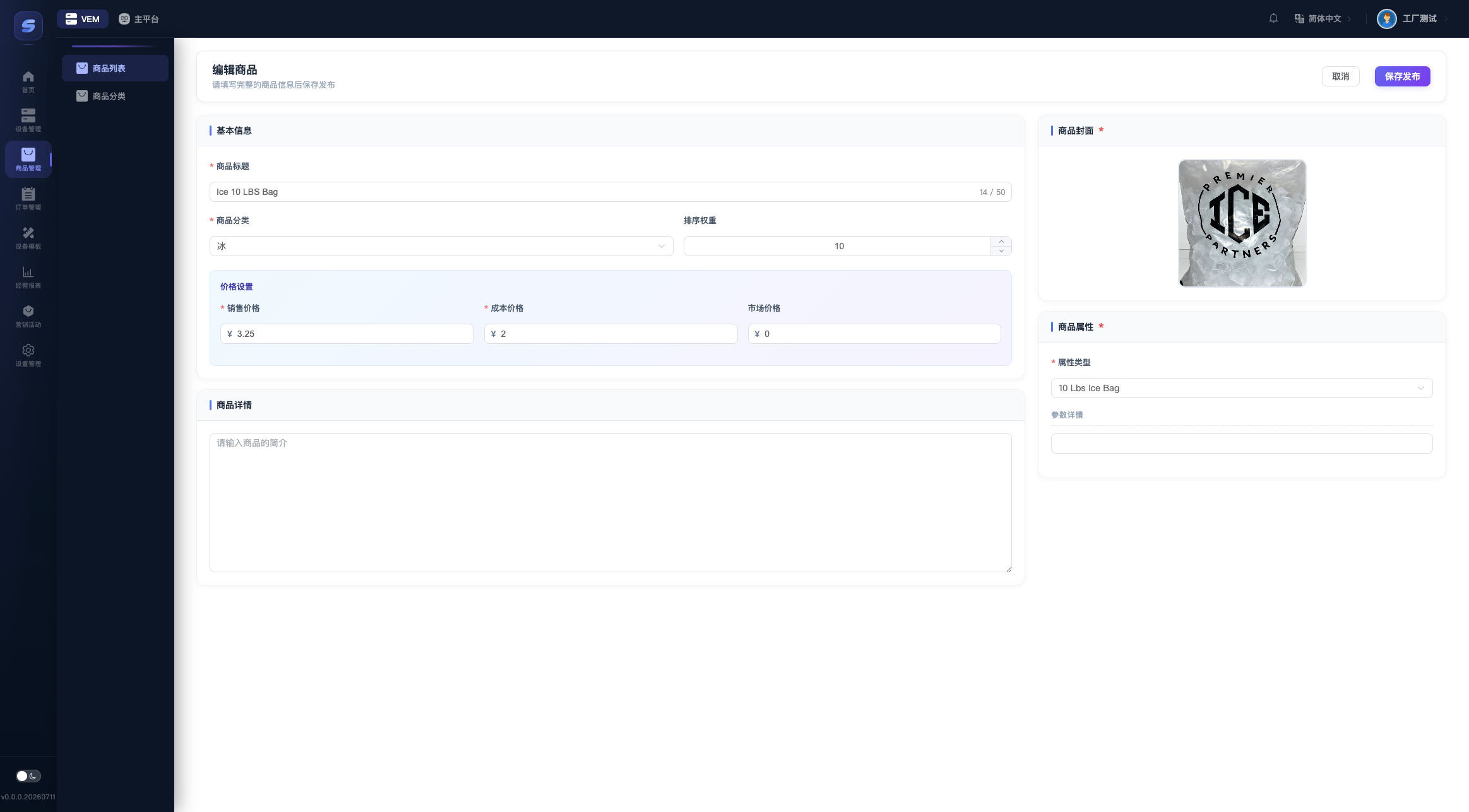
Basic Info
| Field | Required | Description |
|---|---|---|
| Product Title | ✅ | 5-50 characters |
| Category | ✅ | Choose from existing categories |
| Sort Weight | — | 0-9999, higher value = higher position |
Pricing
| Field | Required | Description |
|---|---|---|
| Sale Price | ✅ | The actual selling price |
| Cost Price | ✅ | Purchase cost, used for gross profit statistics |
| Market Price | — | The "original price" for display, optional |
Cover Image & Attributes
- Cover Image (required): Click to upload. Recommended size 800×800, JPG/PNG supported. After uploading, click the image to remove and re-upload.
- Attribute Type (required): Choose the product type from the dropdown (pre-configured by the channel).
- Attribute Detail: Once an attribute type is selected, the parameter rows (e.g. specification, shelf life) appear automatically — just fill them in as prompted.
Once everything is filled in, the Save & Publish button in the top-right corner lights up. If the button is grayed out, check the orange hint to its left — it tells you exactly what is still missing.
Next Step
A newly created product does not appear on the machine yet — you need to go to the device's slot page to assign it to a slot and set its stock. See ③ Assign Products to Slots.