Orders & Refunds
Menu: Orders
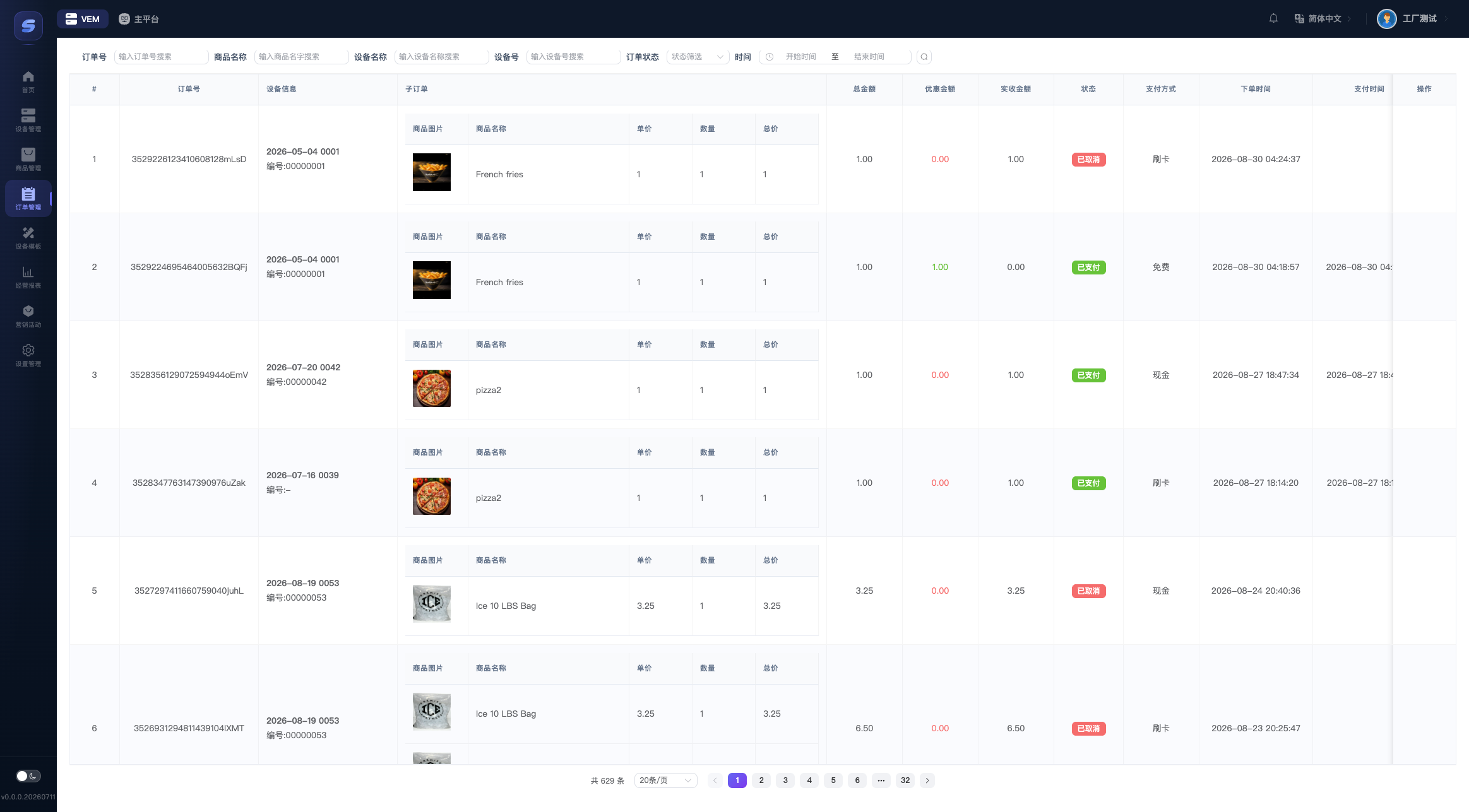
Finding Orders
You can filter by order no. (full number required), product name, device name, device no., order status, and order-time range.
Pick a date range first
When order volume is large, adding a date range makes queries much faster — a good habit to build.
Key columns in the list:
- Items: the product details of an order (image / price / qty / subtotal).
- Total / Discount / Paid: total − discount = paid; if the order has refunds, "Refunded: xx" is shown in red below the paid amount.
- Dispense Flow: opens a drawer on the right with a timeline of every step of this order from payment to dispensing. This is where you look when a customer says nothing came out.
Order Statuses
| Status | Meaning |
|---|---|
| Unpaid | Order placed, not yet paid |
| Paid | Payment succeeded, dispensing not started |
| Dispensing | Dispense command sent to the machine |
| Dispensed | Dispensing completed |
| Dispense error | Something went wrong during dispensing (e.g. a product got stuck); needs attention — refund if appropriate |
| Refunded | Fully refunded |
| Cancelled | Order cancelled |
Refunds
Click the red Refund button on the order row (it only appears for QR-code payment orders in Paid / Dispensing / Dispensed / Dispense error status that still have a refundable balance).
In the dialog:
- Refundable = paid amount − total refunded so far;
- Refund Amount defaults to the full amount; lower it for a partial refund — the same order can be partially refunded multiple times;
- Enter a reason (optional, e.g. "dispense failed") and click Refund.
Refunds cannot be undone
The refund is returned to the buyer via the original payment channel and cannot be withdrawn once submitted.
Rules:
- Cash, card, and free orders do not support online refunds.
- The order status only changes to "Refunded" once the full amount has been refunded, at which point the promo code used by the order is released automatically; a partial refund does not change the status or release the promo code.
- Every refund is logged in the order's "Dispense Flow" (with amount, reason, and operator).