Device Templates & Screen Design
The interface customers see on the device screen (home page, ad page) is determined by the device template: create and design a template first, then bind it to your devices.
Template List
Menu: Templates
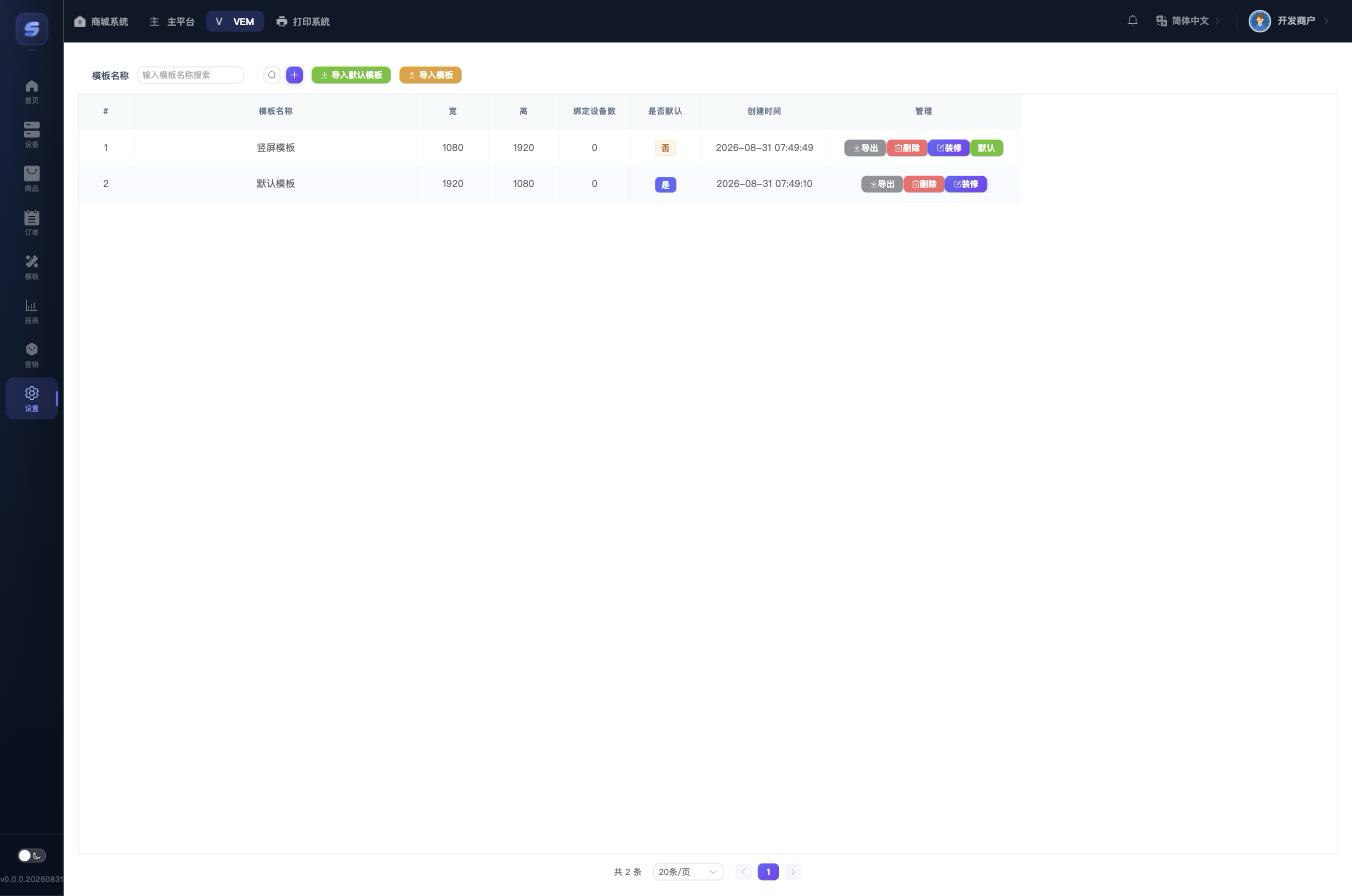
- Create: click + at the top right and fill in:
| Field | Description |
|---|---|
| Template Name | Custom |
| Screen Size (Width/Height) | Enter the device screen resolution; it determines the design canvas size |
| Ad Page | Toggle. The ad page design entry appears only when enabled |
| Ad Timeout | The home page switches to the ad page automatically after this many idle seconds (5-3600 seconds) |
- Import Default Template: creates a built-in standard template (with home and ad page designs) in one click; beginners should start from it.
- Export / Import Template: a template can be exported as a JSON file and imported into another merchant/environment for reuse.
- Set Default: the default template is used by devices that have no template assigned individually.
- The "Bound Devices" column shows how many devices are currently using the template.
Design Editor
Click Design on a template row and choose the page to design (Home Page or Ad Page) to enter the editor.
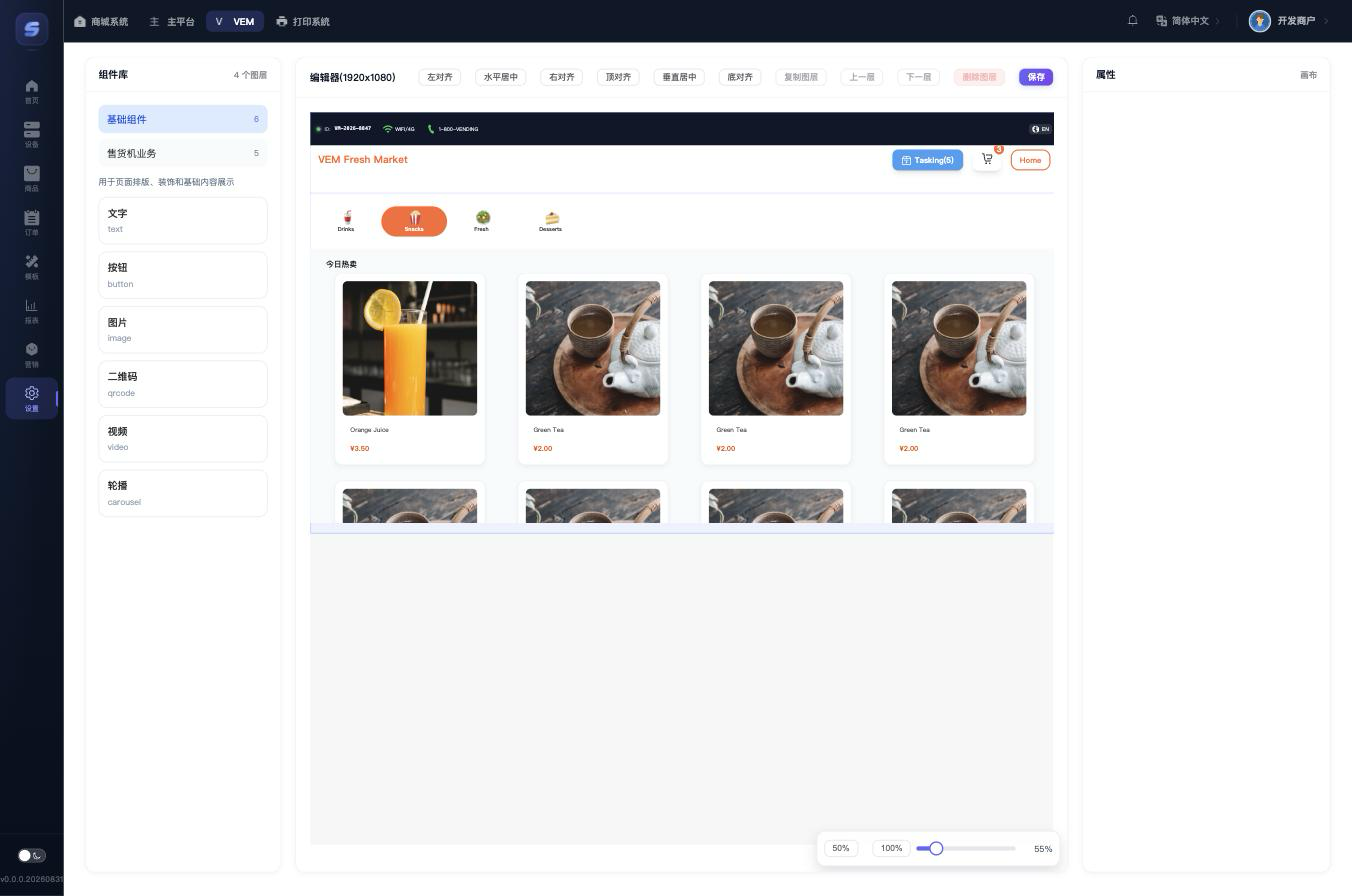
Three-column layout:
- Left - widget library: click a widget to add it to the canvas.
- Basic widgets: text, button, image, QR code, video, carousel
- Vending machine widgets: touch-screen status bar, header menu (store name + logo), touch-screen category bar, touch-screen product grid (adjustable column count, image height, name and price styles; actual product data is loaded automatically by the device), etc.
- Middle - canvas: select a layer, then drag to move it or drag a corner to resize; the top toolbar provides align, duplicate, layer ordering, and delete; zoom the canvas at the bottom right (20%-200%); press Esc to deselect.
- Right - properties: with a layer selected, edit its name, position and size, background color, text style, image/video URL, etc.; text/button/image widgets can also be given a click action (go to home page / ad page / settings page / select language / dispense task / open cart).
Click Save at the top when done.
Applying the Template on a Machine
- Go to Device Detail › Edit Profile › Bind Template, select the template, and save;
- To refresh immediately, send the Refresh Template command from the Device Console.