① Device Onboarding & Management
How to Onboard a Device
Power on the new device, enter the merchant registration code in the device app to complete binding, and the device will appear in your device list right away.
The registration code is shown on the Home page (Dashboard) › device status card, with a one-click copy button.
Be careful when refreshing the registration code
Clicking the refresh button next to the registration code generates a new one, and the old code becomes invalid immediately. Any binding in progress will need the new code.
Device List
Menu: Devices › Device List
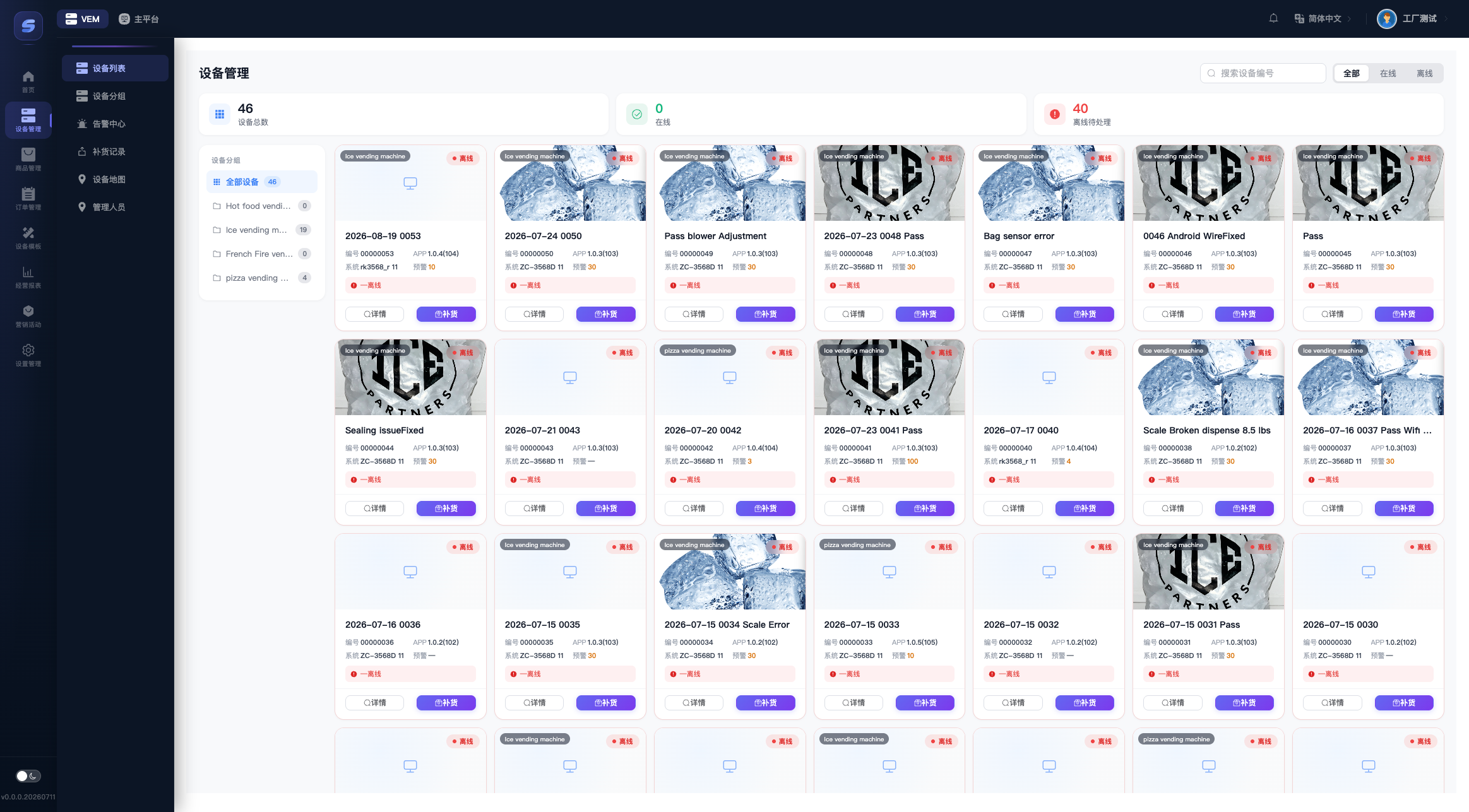
- Filters: Search by device number at the top, or filter by All/Online/Offline. The device group tree is on the left (each group shows its device count).
- Device card: Shows the cover image, group, online/offline status, device number, app version, OS, low-stock threshold, and last heartbeat time. Offline device cards have a red outline.
- Card buttons: Detail (open the device detail page) and Restock (open the slot page, see Assign Products to Slots).
Device Detail
Click Detail on a device card to open it. There are 4 tabs.
Device Info
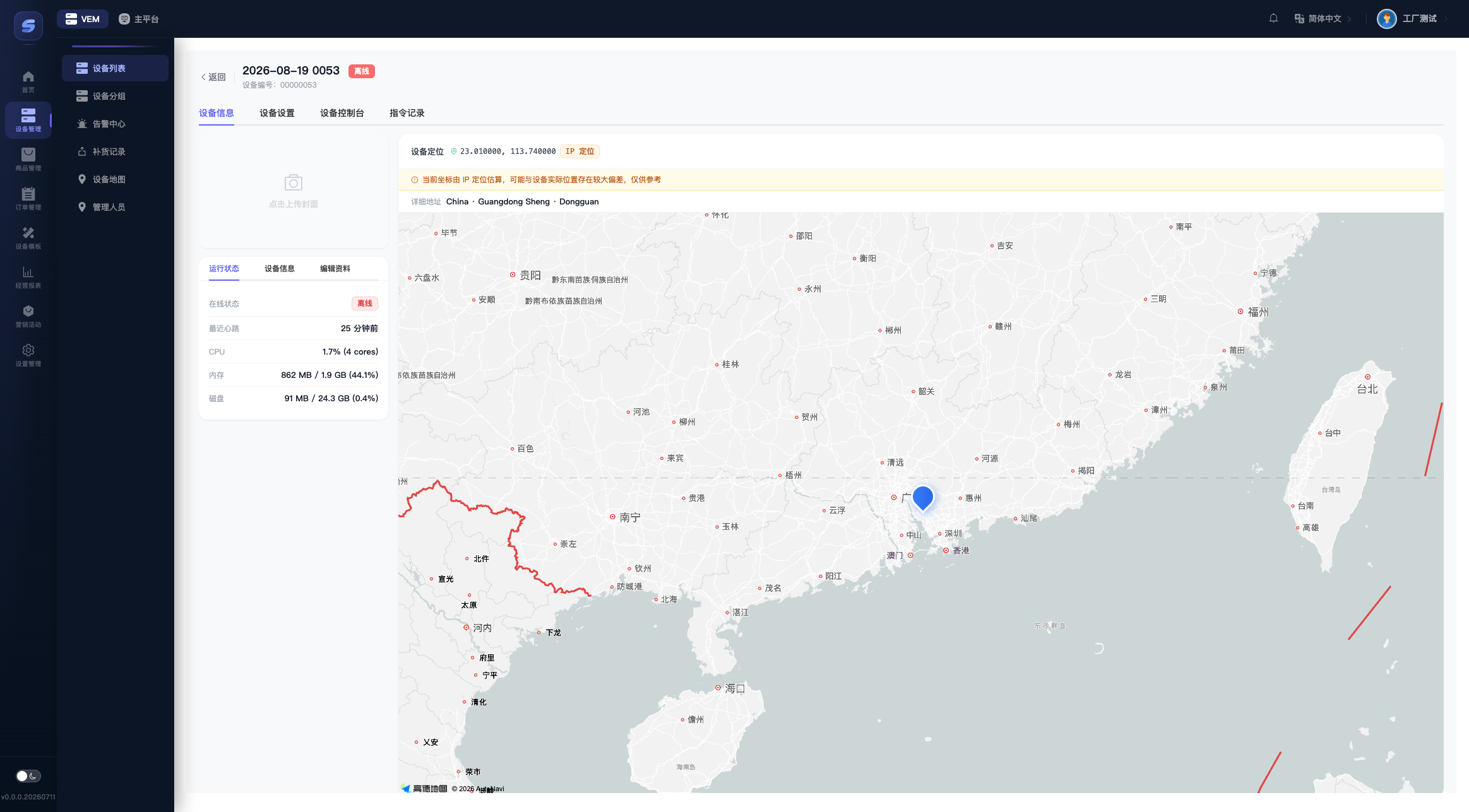
- Runtime Status (read-only): Online status, last heartbeat, and telemetry reported by the device (CPU/memory/disk/version, etc.). Any fault reported by the device is listed in red.
- Device Info (read-only): Device type, OS, IMEI, IP and its location, ISP, etc.
- Edit (editable):
| Field | Description |
|---|---|
| Device Name / Device No. | For display in the admin console |
| Admin Password | 6-digit PIN for entering the on-device management page |
| Group | The device's group, used for list filtering and staff authorization |
| Template | The screen design template used by this machine, see Templates & Screen Design |
| Service Hotline | Customer service number shown on the screen; leave blank to use the global hotline |
| Low Stock Threshold | A "low stock" alert is raised when any product's total stock on this device falls below this value. 0 = disabled |
Click Save Changes for edits to take effect.
- Map on the right: Shows the device location. The coordinate source label is either GPS (accurate) or IP-based (estimated, may deviate significantly). If the location is off, drag the map marker to correct it, then remember to click "Save Changes".
Device Settings (Runtime Parameters)
On-device parameters such as machine type, PLC type, serial ports, and payment peripherals (QR pay/coin acceptor/bill acceptor/card reader).
Prerequisites and Risks
- The device must have reported its config over the network and be currently online before you can edit; the form is disabled while offline.
- A wrong serial path can break device communication and require on-site recovery. Do not touch the serial port section unless you are technical.
After editing, click Save & Push to Device and the device applies the settings live.
Device Console (Remote Commands)
Common remote commands at a glance (dangerous commands require a second confirmation before sending):
| Command | What it does |
|---|---|
| Restart App / Reboot Device | Remotely restart the app or the whole machine |
| Lock (Stop Sales) / Resume Sales | Temporarily pause and resume sales |
| Test Dispense | Pick in-stock products of this machine to create a $0 order that goes through the real dispensing flow (stock is really deducted). Used for machine testing |
| Push Update | Push an app update to a target version |
| Upload Logs / Remote Screenshot / Query Status | For troubleshooting; results appear in the Command Logs tab |
| Refresh Template | Tell the device to re-fetch its screen design template |
After sending, you are taken to the Command Logs tab to check the response. Once "Upload Logs" succeeds you can download the log bundle; once "Remote Screenshot" succeeds you can preview the screenshot.
Device Groups
Menu: Devices › Device Groups. Maintain group names and sort order. Groups are used for: filtering in the device list, the group dropdown in device settings, and staff authorization.
Managers (Device Authorization)
Menu: Devices › Managers
Assign which devices your field maintenance/restocking staff can manage. Find the staff member by nickname/mobile number and click Authorize:
| Item | Description |
|---|---|
| Auth Scope | All devices, or Custom (by group + specific devices) |
| Device Groups | Selecting a group makes devices in the group take effect dynamically — devices added to the group later are automatically visible |
| Permissions | Options: Restock, Resolve Alarms, Remote Commands |
On the mobile end, staff can only see and operate the devices and features they are authorized for.